
How To: Take Down Notes On Your Computer Without Writing Anything
How To by DesignTAXI walks you through nifty productivity tips that you’d wish you’d have known of earlier. Work-life balance in the stay-home era is entirely possible if you pick up tricks that not only speed up your work process but also free up mental clutter.

Image via Shutterstock
Your ideas might travel much faster than you can type. Some days, laying your fingers on the keyboard might also seem too cumbersome.
Now that remote-working is the norm, you might want to take note of a different method of note-taking: voice transcriptions. It’s gaining popularity with students whose lessons are now conducted online—taking notes through voice allows them to get their thoughts out there without being slowed down from typing or, even worse, suffering hand cramps from writing.
Whether you’re busy with daily meetings or are taking some online classes, this Google Docs and Microsoft Word trick could be a great lifesaver.
On Google Docs

Image via monticello / Shutterstock.com
1. From a Chrome browser, create or open a document in Google Docs.
2. Select Tools > Voice typing.
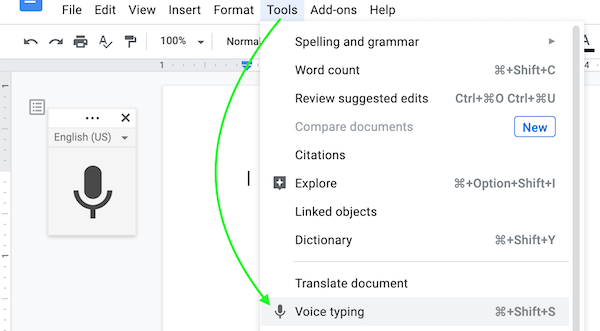
Screenshot via Google Docs
3. Enable microphone access if you haven’t yet. A microphone box will appear on the left after permissions are granted.
4. When you’re ready to record, click on the microphone and speak clearly.
Voice typing is available in multiple languages and accents on Google Docs.
On Microsoft Office 365
1. From a Chrome or Microsoft Edge browser, head to Microsoft Office 365 and open or create a Word document.
2. Select Home > Dictate.
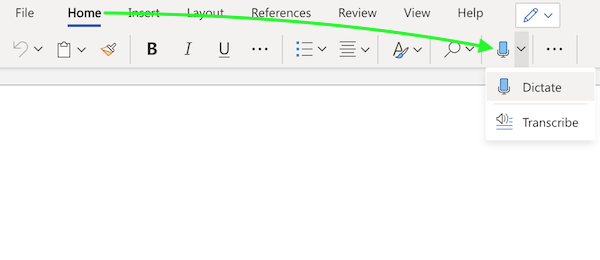
Screenshot via Microsoft Office 365
3. Click on the microphone icon and start speaking.
[via Google Support and KTLA, images via various sources]
Image via Shutterstock
Your ideas might travel much faster than you can type. Some days, laying your fingers on the keyboard might also seem too cumbersome.
Now that remote-working is the norm, you might want to take note of a different method of note-taking: voice transcriptions. It’s gaining popularity with students whose lessons are now conducted online—taking notes through voice allows them to get their thoughts out there without being slowed down from typing or, even worse, suffering hand cramps from writing.
Whether you’re busy with daily meetings or are taking some online classes, this Google Docs and Microsoft Word trick could be a great lifesaver.
On Google Docs
Image via monticello / Shutterstock.com
1. From a Chrome browser, create or open a document in Google Docs.
2. Select Tools > Voice typing.
Screenshot via Google Docs
3. Enable microphone access if you haven’t yet. A microphone box will appear on the left after permissions are granted.
4. When you’re ready to record, click on the microphone and speak clearly.
Voice typing is available in multiple languages and accents on Google Docs.
On Microsoft Office 365
1. From a Chrome or Microsoft Edge browser, head to Microsoft Office 365 and open or create a Word document.
2. Select Home > Dictate.
Screenshot via Microsoft Office 365
3. Click on the microphone icon and start speaking.
[via Google Support and KTLA, images via various sources]
Also check out these recent news


