
How To: Shoot A Video & Photo At The Same Time On Your Smartphone
How To by DesignTAXI walks you through nifty productivity tips that you’ll wish you’d have known of earlier.
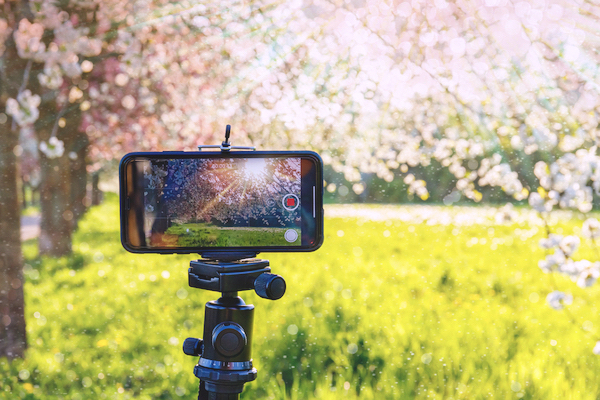
Image via nnattalli / Shutterstock.com
There could come a time when you’re recording a video and thinking, “Hmm, I wish I had a photo of this moment.” Well, guess what? You can actually take a video and photo simultaneously.
Whether you’re chronicling fleeting antics of a child who can’t sit still, or would love a shot of fireworks instead of a full-length video you’ll never watch again, when that happens, you’ll know exactly what to do.
One drawback of capturing a photo while you’re recording is that the picture will turn out with the same resolution as a video. Still, that’s better than nothing, and it’s more precious than rewatching the video and taking a screenshot.
It’s possible to shoot videos and photos at the same time on both iOS and Android devices. Scroll down to find out how.
From the iPhone or iPad
1. From the Camera app, switch on video mode.
2. Tap the red button to start recording a video.
3. With the video still running, tap the white circular button to capture a photo.
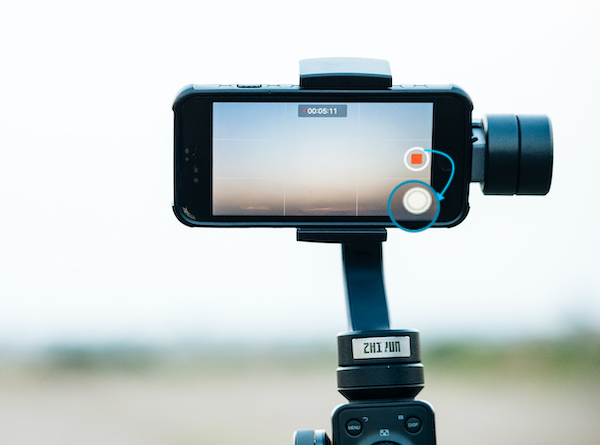
Image via MPIX.TURE / Shutterstock.com
The image will be saved to the Photos album in your camera roll.
From an Android device
1. From the Camera app, switch on video mode.
2. Start recording the video.
3. To snap a photo while the video is running, tap the Camera or Shutter icon.
The icon might look different depending on your smartphone model. It could either appear as a camera or a circle.
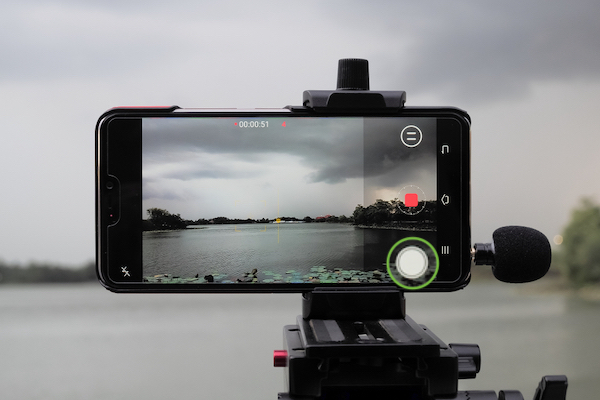
Image via Shutterstock
The photo will be saved to your gallery.
[via The Cell Guide, Lifewire, wikiHow, Gadget Hacks, images via Shutterstock]
Image via nnattalli / Shutterstock.com
There could come a time when you’re recording a video and thinking, “Hmm, I wish I had a photo of this moment.” Well, guess what? You can actually take a video and photo simultaneously.
Whether you’re chronicling fleeting antics of a child who can’t sit still, or would love a shot of fireworks instead of a full-length video you’ll never watch again, when that happens, you’ll know exactly what to do.
One drawback of capturing a photo while you’re recording is that the picture will turn out with the same resolution as a video. Still, that’s better than nothing, and it’s more precious than rewatching the video and taking a screenshot.
It’s possible to shoot videos and photos at the same time on both iOS and Android devices. Scroll down to find out how.
From the iPhone or iPad
1. From the Camera app, switch on video mode.
2. Tap the red button to start recording a video.
3. With the video still running, tap the white circular button to capture a photo.
Image via MPIX.TURE / Shutterstock.com
The image will be saved to the Photos album in your camera roll.
From an Android device
1. From the Camera app, switch on video mode.
2. Start recording the video.
3. To snap a photo while the video is running, tap the Camera or Shutter icon.
The icon might look different depending on your smartphone model. It could either appear as a camera or a circle.
Image via Shutterstock
The photo will be saved to your gallery.
[via The Cell Guide, Lifewire, wikiHow, Gadget Hacks, images via Shutterstock]
Also check out these recent news


