
How To: Find Missing Classic Brushes On Adobe Photoshop CC
How To by DesignTAXI walks you through nifty productivity tips that you’ll wish you’d have known of earlier.

Image via Shutterstock
If you’re using Adobe Photoshop CC 2018 or newer, you might notice that the default brushes of earlier versions have gone missing. Fret not, though, as the classic brushes are still in your collection.
Photoshop rearranged the way brushes would be organized in the 2018 software, and the default sets were just moved somewhere else. They’re now called ‘Legacy Brushes’.
Here’s how to retrieve them.
1. Open Photoshop CC (2018 or newer), and then click on the Brush tool.
2. If you’re using a PC, right-click the Brush icon to launch the Brush Preset Picker. You can do the same on the Mac with Control > click.
3. Click on the small gear icon on the right, and then select ‘Legacy Brushes’ on the dropdown menu.
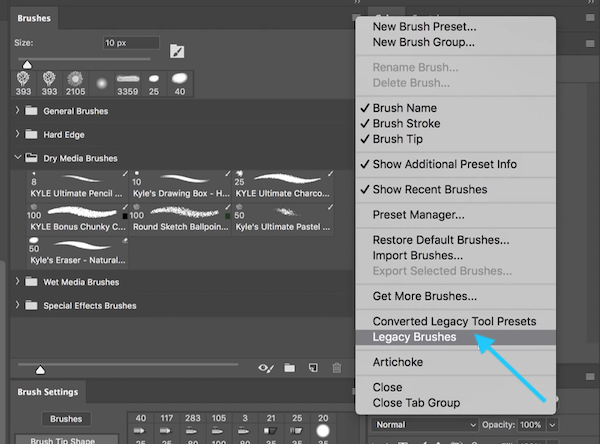
Video screenshot via Adobe Photoshop
4. When prompted with the window asking, “Restore the Legacy Brushes Brush Set to the list of Brush Presets?” click OK.
5. A ‘Legacy Brushes’ folder will appear at the bottom of your default brush window. Click the arrow to expand the collection and view them all.
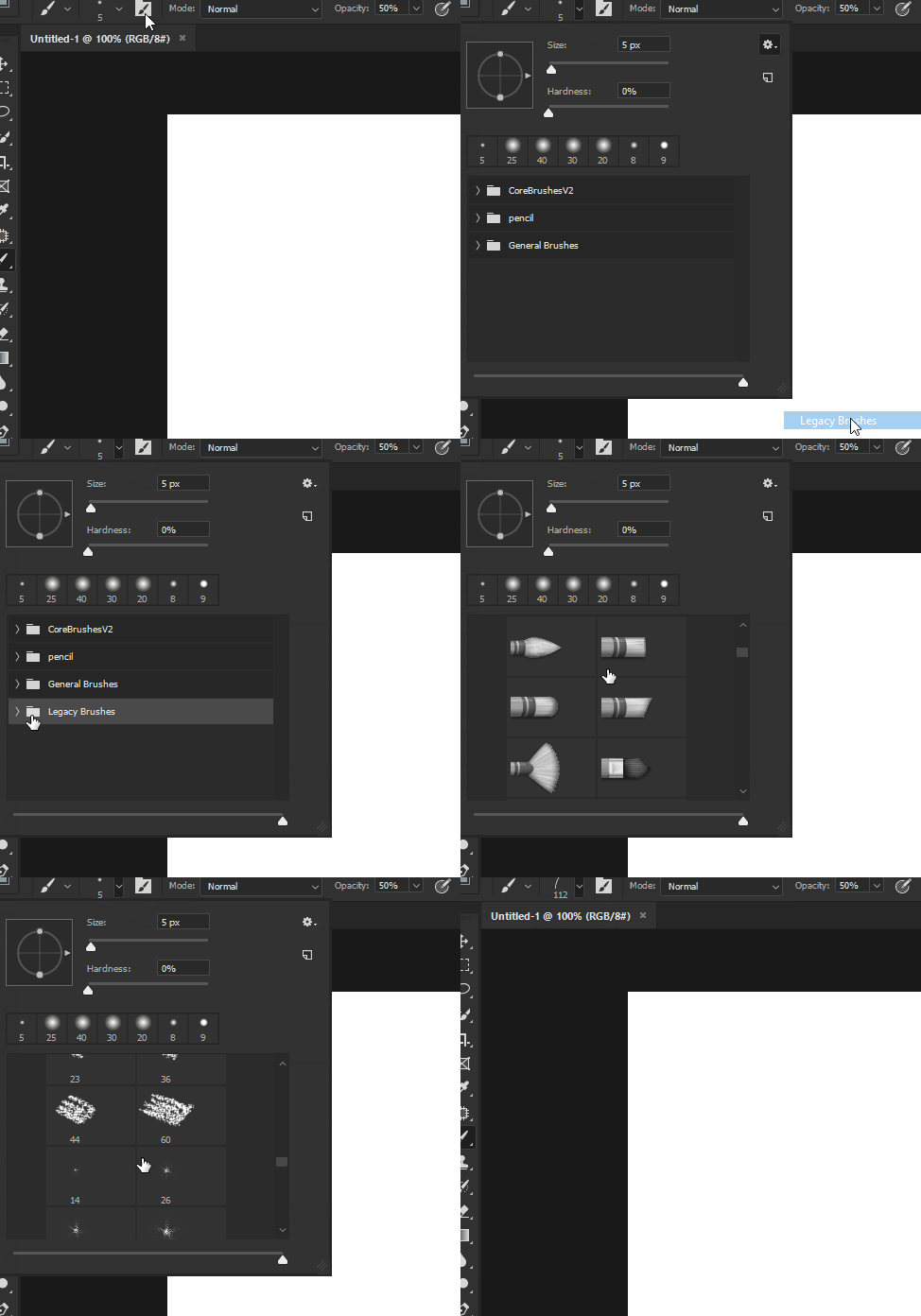
Image via Mr.Online / Stack Exchange (CC BY-SA 4.0)
[via Stack Exchange, Photoshop Essentials, Julieanne Kost’s Blog, images via various sources]
Image via Shutterstock
If you’re using Adobe Photoshop CC 2018 or newer, you might notice that the default brushes of earlier versions have gone missing. Fret not, though, as the classic brushes are still in your collection.
Photoshop rearranged the way brushes would be organized in the 2018 software, and the default sets were just moved somewhere else. They’re now called ‘Legacy Brushes’.
Here’s how to retrieve them.
1. Open Photoshop CC (2018 or newer), and then click on the Brush tool.
2. If you’re using a PC, right-click the Brush icon to launch the Brush Preset Picker. You can do the same on the Mac with Control > click.
3. Click on the small gear icon on the right, and then select ‘Legacy Brushes’ on the dropdown menu.
Video screenshot via Adobe Photoshop
4. When prompted with the window asking, “Restore the Legacy Brushes Brush Set to the list of Brush Presets?” click OK.
5. A ‘Legacy Brushes’ folder will appear at the bottom of your default brush window. Click the arrow to expand the collection and view them all.
Image via Mr.Online / Stack Exchange (CC BY-SA 4.0)
[via Stack Exchange, Photoshop Essentials, Julieanne Kost’s Blog, images via various sources]
Also check out these recent news


