
How To: Turn Your iPad Into A ‘Computer’ By Pairing It With A Mouse
How To by DesignTAXI walks you through nifty productivity tips that you’d wish you’d have known of earlier. Work-life balance in the stay-home era is entirely possible if you pick up tricks that not only speed up your work process but also free up mental clutter.
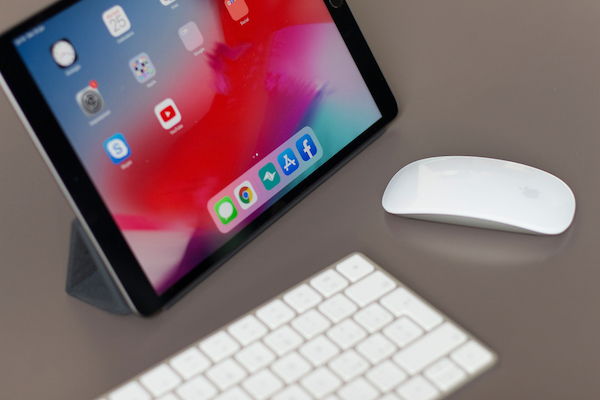
Image via Cesare Andrea Ferrari / Shutterstock.com
Apple envisionages that users will one day use the iPad in the same way they’d use a laptop. Apart from supporting pro-level productivity apps like Adobe Photoshop on iPad, the company has now made it officially possible to use a Bluetooth mouse with its tablets—a previously primitive feature hidden in Accessibility settings.
This was achievable with the launch of iPadOS 13.4 in March 2020. Compatible models are all iPad Pros, iPad Air 2 and newer, the fifth-gen iPad and newer, and iPad minis starting from the fourth-gen model.
If you enjoy the idea of carrying a lightweight version of a laptop around, scroll down to find out how you can pair your mouse with the iPad.
Connecting your Bluetooth mouse to the iPad
1. Turn on your Bluetooth mouse and set it near your iPad.
Ensure pairing mode is switched on on your mouse.
2. Launch the Settings app on your iPad, then select Bluetooth.
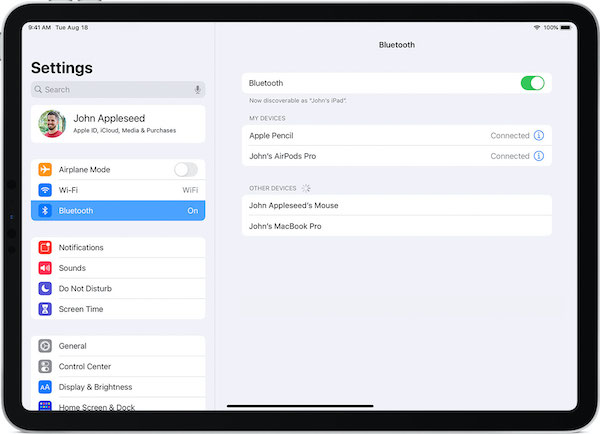
Image via Apple
Your accessory’s name should appear under Other Devices.
3. Tap the name of your mouse to pair it with your iPad.
The cursor first appears as a circle, changing its shape as you navigate your screen.
Image via Apple
Over text, it sports an I-beam appearance:
Adjusting mouse settings
You can toggle the speed of your iPad’s pointer, activate a secondary click, or scroll through content in the same direction as your fingers’ movements (Natural Scrolling).
1. Open Settings > General > Trackpad & Mouse.
To change the speed of your cursor, drag the Tracking Speed slider.
To create a secondary click setting, tap Secondary Click and select if you’d prefer it to be on the left or right button of your mouse.
To enable scrolling according to your fingers’ movements, switch on Natural Scrolling.
Changing your cursor’s appearance
Head over to Settings >Accessibility > Pointer Control.
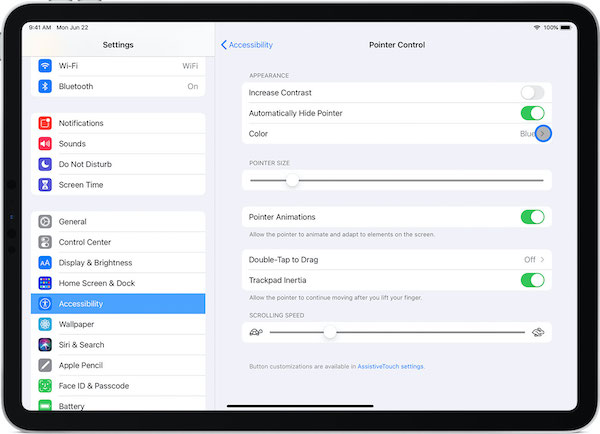
Image via Apple
To customize your pointer’s color, tap Color.
To make the cursor darker, select Increase Contrast.
To change its size, drag along the Pointer Size slider.
To have your cursor disappear when you’re not using your mouse, select Automatically Hide Pointer.
[via Apple, images via various sources]
Image via Cesare Andrea Ferrari / Shutterstock.com
Apple envisionages that users will one day use the iPad in the same way they’d use a laptop. Apart from supporting pro-level productivity apps like Adobe Photoshop on iPad, the company has now made it officially possible to use a Bluetooth mouse with its tablets—a previously primitive feature hidden in Accessibility settings.
This was achievable with the launch of iPadOS 13.4 in March 2020. Compatible models are all iPad Pros, iPad Air 2 and newer, the fifth-gen iPad and newer, and iPad minis starting from the fourth-gen model.
If you enjoy the idea of carrying a lightweight version of a laptop around, scroll down to find out how you can pair your mouse with the iPad.
Connecting your Bluetooth mouse to the iPad
1. Turn on your Bluetooth mouse and set it near your iPad.
Ensure pairing mode is switched on on your mouse.
2. Launch the Settings app on your iPad, then select Bluetooth.
Image via Apple
Your accessory’s name should appear under Other Devices.
3. Tap the name of your mouse to pair it with your iPad.
The cursor first appears as a circle, changing its shape as you navigate your screen.
Image via Apple
Over text, it sports an I-beam appearance:
Adjusting mouse settings
You can toggle the speed of your iPad’s pointer, activate a secondary click, or scroll through content in the same direction as your fingers’ movements (Natural Scrolling).
1. Open Settings > General > Trackpad & Mouse.
To change the speed of your cursor, drag the Tracking Speed slider.
To create a secondary click setting, tap Secondary Click and select if you’d prefer it to be on the left or right button of your mouse.
To enable scrolling according to your fingers’ movements, switch on Natural Scrolling.
Changing your cursor’s appearance
Head over to Settings >Accessibility > Pointer Control.
Image via Apple
To customize your pointer’s color, tap Color.
To make the cursor darker, select Increase Contrast.
To change its size, drag along the Pointer Size slider.
To have your cursor disappear when you’re not using your mouse, select Automatically Hide Pointer.
[via Apple, images via various sources]
Also check out these recent news


