
How To: Stop Binge-Watching Netflix & Other Streaming Apps With iOS
How To by DesignTAXI walks you through nifty productivity tips that you’d wish you’d have known of earlier. Work-life balance in the stay-home era is entirely possible if you pick up tricks that not only speed up your work process but also free up mental clutter.
Image via Natee Meepian / Shutterstock.com
Every ending of an episode is designed for continuity so you’d be hooked into finding out what happens next. It’s little wonder people are literally losing sleep when they realize the last person a deceased protagonist had seen isn’t the character that creators had manipulated viewers to follow, or when viewers learn the obvious fix to a conundrum would be the one that backfires.
The addictive nature of series and films is why streaming platforms like Netflix, Hulu, and Disney+ have seen immense success—and while it’s great to indulge in these pleasures to keep your mind off things these days, you wouldn’t want to feel all flustered at an important meeting the next morning.
Fortunately, Netflix started considering self-induced curfews by testing its own sleep timer this year, but that has only been experimented on Android devices. There’s no update as to when this feature will become official, or if it’s ever coming to iOS. Not all hope is lost, though, as there’s a way around this for iPhone users—and you won’t even have to download another app.
The solution? Set a timer to disable streaming at a specified amount of time.
Scroll down to find out how you can do it.
1. On your iPhone, launch the Clock app and tap ‘Timer’.
2. Adjust the timer according to how long you’d allow yourself to stream a show or film.
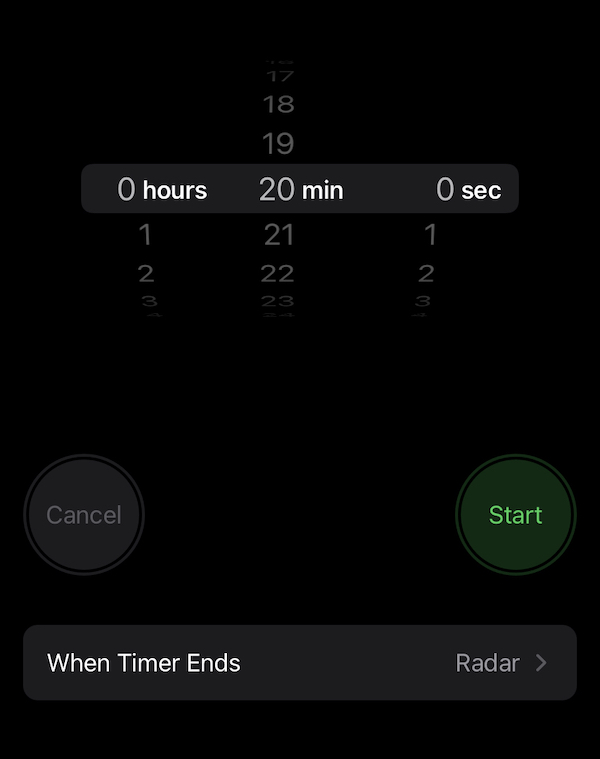
Screenshot via iPhone
3. Select ‘When Timer Ends’, then drag your screen all the way down until you find ‘Stop Playing’. Tap on that.
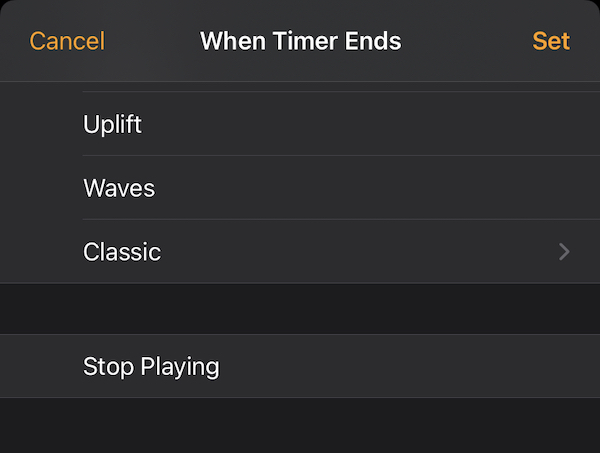
Screenshot via iPhone
4. Select ‘Set’ in the popup window, then tap ‘Start’ to begin the timer.
That’s it. When the timer ends, your iPhone will stop all media from playing, including videos and music.
[via Mashable, iMore, iDownload Blog, images via various sources]
Image via Natee Meepian / Shutterstock.com
Every ending of an episode is designed for continuity so you’d be hooked into finding out what happens next. It’s little wonder people are literally losing sleep when they realize the last person a deceased protagonist had seen isn’t the character that creators had manipulated viewers to follow, or when viewers learn the obvious fix to a conundrum would be the one that backfires.
The addictive nature of series and films is why streaming platforms like Netflix, Hulu, and Disney+ have seen immense success—and while it’s great to indulge in these pleasures to keep your mind off things these days, you wouldn’t want to feel all flustered at an important meeting the next morning.
Fortunately, Netflix started considering self-induced curfews by testing its own sleep timer this year, but that has only been experimented on Android devices. There’s no update as to when this feature will become official, or if it’s ever coming to iOS. Not all hope is lost, though, as there’s a way around this for iPhone users—and you won’t even have to download another app.
The solution? Set a timer to disable streaming at a specified amount of time.
Scroll down to find out how you can do it.
1. On your iPhone, launch the Clock app and tap ‘Timer’.
2. Adjust the timer according to how long you’d allow yourself to stream a show or film.
Screenshot via iPhone
3. Select ‘When Timer Ends’, then drag your screen all the way down until you find ‘Stop Playing’. Tap on that.
Screenshot via iPhone
4. Select ‘Set’ in the popup window, then tap ‘Start’ to begin the timer.
That’s it. When the timer ends, your iPhone will stop all media from playing, including videos and music.
[via Mashable, iMore, iDownload Blog, images via various sources]
Also check out these recent news


