
How To: Check If An Image Has Been Digitally Altered
How To by DesignTAXI walks you through nifty productivity tips that you’d wish you’d have known of earlier. Work-life balance in the stay-home era is entirely possible if you pick up tricks that not only speed up your work process but also free up mental clutter.
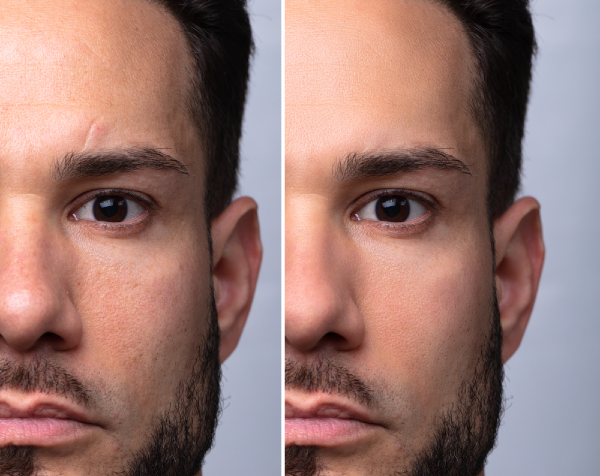
Image via Shutterstock
When you look at a professional photo, chances are that it has endured its fair share of retouching. And unless you’re staring at a picture that had just been captured seconds ago, it’s likely it has already been subjected to some form of alteration.
Editing tools have become so advanced, it’s oftentimes virtually impossible to identify which parts of a photo have been tweaked. Thankfully, whether you’re fact-checking or scrutinizing images out of sheer curiosity, there are identifiers to distinguish what’s real and fake.
Below are some quick ways to do it.
Look out for odd or unnatural details
The most obvious way to look for photoshopped details, of course, is to see if the image looks natural. The photo above is an extreme example of a picture that’s been heavily “enhanced”—if you can even call it that.
Are there areas in the image—particularly near a model’s waist or face—that seem especially blurry or pixelated? This is a sign that it has been altered with liquefying or airbrushing tools. Also check if surrounding patterns seem warped.
Another way to immediately spot alterations is to study the image’s shadows and highlights and note if they’re against the law of physics.
Internet users have a love-hate relationship with “Photoshop fails,” and are likely already pros at identifying botched jobs through these cues.
However, there could be instances when details that look doctored are simply results of unusual lighting, or even a smudge on a camera lens.
Use AI checkers
Screenshot via FotoForensics
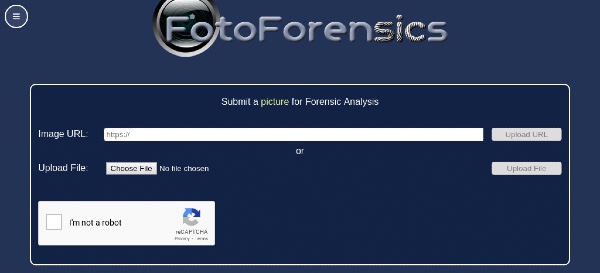
For a more in-depth analysis, consider verification tools like FotoForensics, a free and speedy checker that spots possible abnormalities in photos.
In the case of FotoForensics, it claims to work similar to a microscope by highlighting elements easily missed by the human eye. It also runs on an Error Level Analysis (ELA) algorithm that points out inconsistencies in the JPEG compression rate, which can translate as textures or edges that seem a little off.
To use the tool, simply upload a photo and let it do the rest of the work.
It’s worth noting, however, that this forensics tool doesn’t explicitly point out errors. It simply offers clues to help you make more informed inferences.
[via ScienceAlert, Lifehack, images via various sources]
Image via Shutterstock
When you look at a professional photo, chances are that it has endured its fair share of retouching. And unless you’re staring at a picture that had just been captured seconds ago, it’s likely it has already been subjected to some form of alteration.
Editing tools have become so advanced, it’s oftentimes virtually impossible to identify which parts of a photo have been tweaked. Thankfully, whether you’re fact-checking or scrutinizing images out of sheer curiosity, there are identifiers to distinguish what’s real and fake.
Below are some quick ways to do it.
Look out for odd or unnatural details
The most obvious way to look for photoshopped details, of course, is to see if the image looks natural. The photo above is an extreme example of a picture that’s been heavily “enhanced”—if you can even call it that.
Are there areas in the image—particularly near a model’s waist or face—that seem especially blurry or pixelated? This is a sign that it has been altered with liquefying or airbrushing tools. Also check if surrounding patterns seem warped.
Another way to immediately spot alterations is to study the image’s shadows and highlights and note if they’re against the law of physics.
Internet users have a love-hate relationship with “Photoshop fails,” and are likely already pros at identifying botched jobs through these cues.
However, there could be instances when details that look doctored are simply results of unusual lighting, or even a smudge on a camera lens.
Use AI checkers
Screenshot via FotoForensics
For a more in-depth analysis, consider verification tools like FotoForensics, a free and speedy checker that spots possible abnormalities in photos.
In the case of FotoForensics, it claims to work similar to a microscope by highlighting elements easily missed by the human eye. It also runs on an Error Level Analysis (ELA) algorithm that points out inconsistencies in the JPEG compression rate, which can translate as textures or edges that seem a little off.
To use the tool, simply upload a photo and let it do the rest of the work.
It’s worth noting, however, that this forensics tool doesn’t explicitly point out errors. It simply offers clues to help you make more informed inferences.
[via ScienceAlert, Lifehack, images via various sources]
Also check out these recent news


