
How To: Use Your Phone Screen As A Level To Straighten Picture Frames & More
How To by DesignTAXI walks you through nifty productivity tips that you’ll wish you’d have known of earlier.
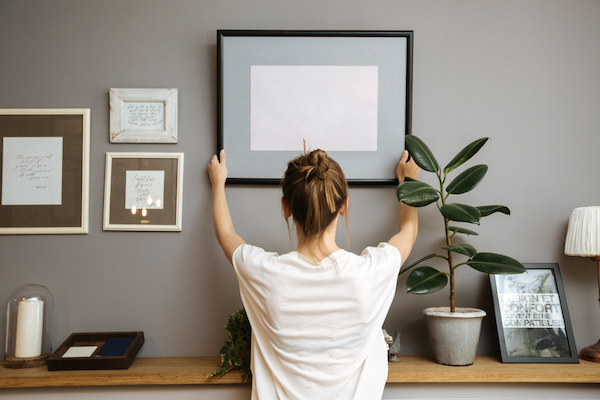
Image via Shutterstock
When you’re putting up new wall art or a photo frame, you often have to have someone to watch as you align it or simply eyeball its placement yourself. But, guess what? You probably already have a tool for that in your hand.
If you own an iPhone, you’d be pleased to know that there’s already a default level tool within iOS. In fact, it has been hiding away since iOS 7.
Sadly, there’s no built-in level tool stowed inside the Android OS, but while there are plenty of third-party apps out there, you can also always fall back on Google with its trusty productivity tools, bubble level tool included.
Check below to find out how to use your phone as a compact, portable level. Your eyes will never twitch at a jarringly near-straight frame on the wall again.
On an iPhone
1. For greater—albeit marginal—accuracy, you might first wish to remove any accessory attached to your iPhone.
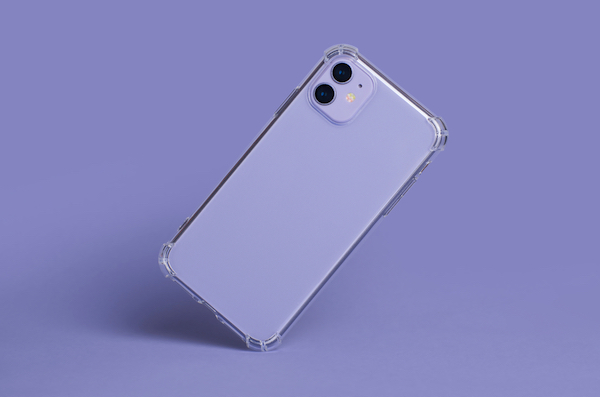
Image via Shutterstock
The added weight of a phone case or PopSocket could affect the tool’s accuracy by a smidge. If you’re a stickler for precision, try working with a bare iPhone during this process.
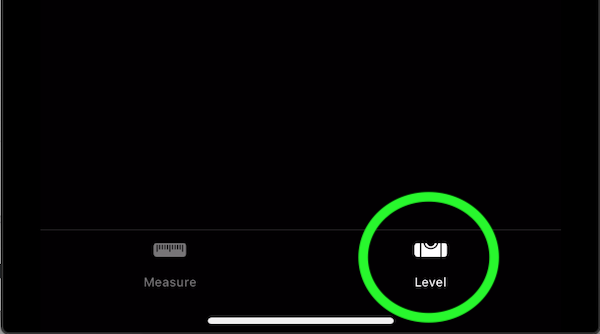
2. Launch the Measure app, then tap ‘Level’.
Screenshot via iOS
3. Hold your iPhone against the object you wish to have aligned.
The app will let you know if the object is set at an off-angle.
4. Adjust the object’s angle and tilt your iPhone accordingly until the marker reads 0°.
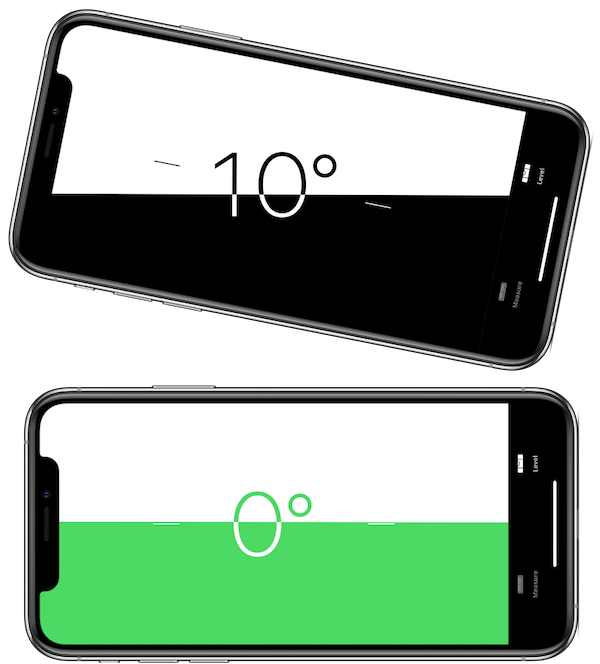
Image via Apple
Your display will also turn green to confirm the object is properly aligned.
On an Android device
1. To ensure all the variables are right, consider removing your protective case or other accessories attached to your phone.
The difference will be slight, but you might want to keep your phone in its original thickness and weight for greater accuracy.
2. Launch the Google app and look up “bubble level” using the search tool.
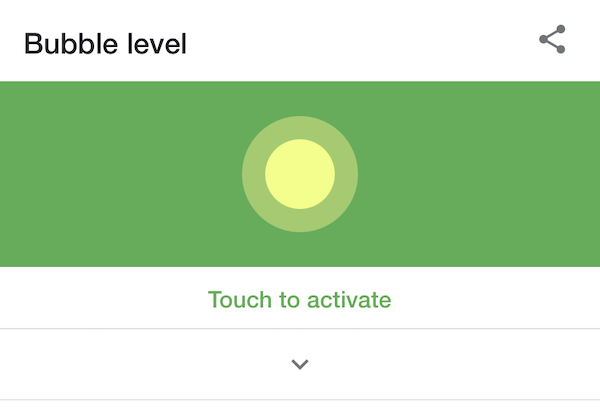
Screenshot via Google
You’ll be shown Google’s very own bubble level feature. Tap the tool to activate it.
3. Place your phone against the object and shift accordingly until the tool reads 0°.
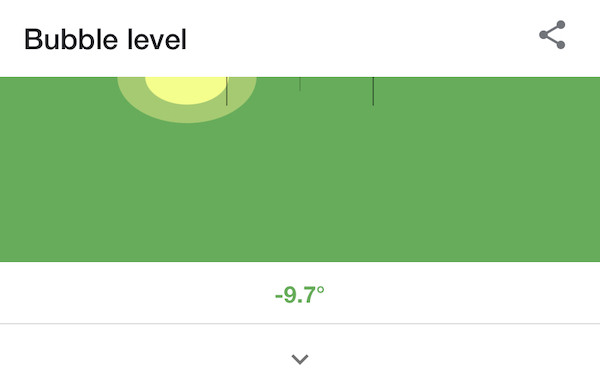
Screenshot via Google
[via Gadget Hacks, Make Use Of, Apple, images via various sources]
Image via Shutterstock
When you’re putting up new wall art or a photo frame, you often have to have someone to watch as you align it or simply eyeball its placement yourself. But, guess what? You probably already have a tool for that in your hand.
If you own an iPhone, you’d be pleased to know that there’s already a default level tool within iOS. In fact, it has been hiding away since iOS 7.
Sadly, there’s no built-in level tool stowed inside the Android OS, but while there are plenty of third-party apps out there, you can also always fall back on Google with its trusty productivity tools, bubble level tool included.
Check below to find out how to use your phone as a compact, portable level. Your eyes will never twitch at a jarringly near-straight frame on the wall again.
On an iPhone
1. For greater—albeit marginal—accuracy, you might first wish to remove any accessory attached to your iPhone.
Image via Shutterstock
The added weight of a phone case or PopSocket could affect the tool’s accuracy by a smidge. If you’re a stickler for precision, try working with a bare iPhone during this process.
2. Launch the Measure app, then tap ‘Level’.
Screenshot via iOS
3. Hold your iPhone against the object you wish to have aligned.
The app will let you know if the object is set at an off-angle.
4. Adjust the object’s angle and tilt your iPhone accordingly until the marker reads 0°.
Image via Apple
Your display will also turn green to confirm the object is properly aligned.
On an Android device
1. To ensure all the variables are right, consider removing your protective case or other accessories attached to your phone.
The difference will be slight, but you might want to keep your phone in its original thickness and weight for greater accuracy.
2. Launch the Google app and look up “bubble level” using the search tool.
Screenshot via Google
You’ll be shown Google’s very own bubble level feature. Tap the tool to activate it.
3. Place your phone against the object and shift accordingly until the tool reads 0°.
Screenshot via Google
[via Gadget Hacks, Make Use Of, Apple, images via various sources]
Also check out these recent news


