
How To: Change The Colors Of Folders On Your Mac
How To by DesignTAXI walks you through nifty productivity tips that you’d wish you have known of earlier. Work-life balance in the stay-home era is entirely possible if you pick up tricks that not only speed up your work process but also free up mental clutter.
Screenshot via Mac
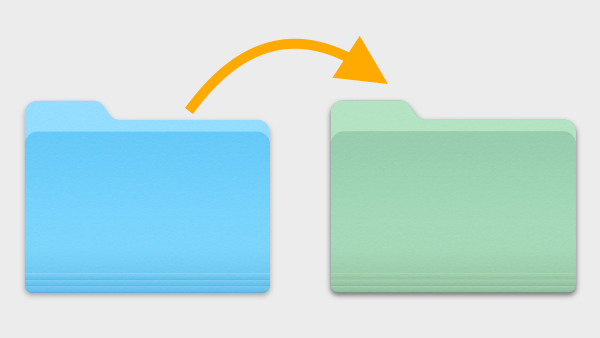
Do you recall labeling your notes with colorful adhesive tabs? As it turns out, there’s a lesser-known, digital version of the organization trick; you can actually change the color of your folders on the Mac so you can find them a little more easily.
Sure, you can just look at the names of your folders—but where’s the fun in that? By tweaking their hues, you’ll also instantly direct the eye to look at the folder you’re working on.
Scroll down to find out how to add a pop of color to your work process.
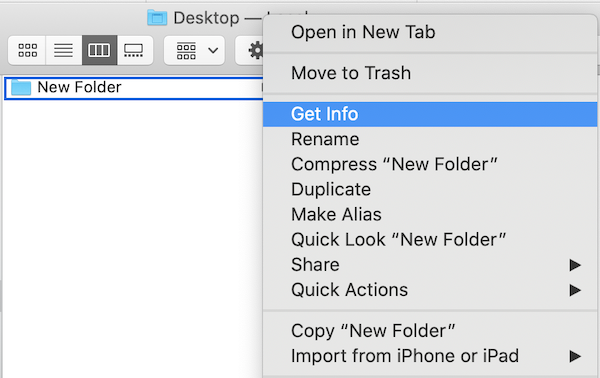
1. Right click on the folder you wish to customize, then select ‘Get Info’.
Screenshot via Mac
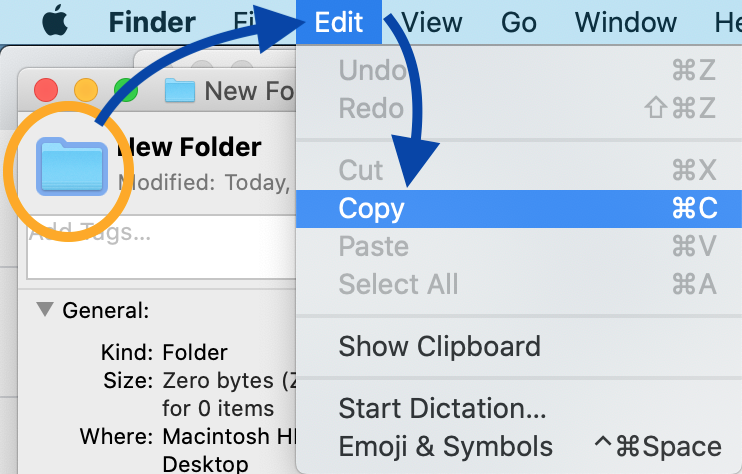
2. When the Folder Info window opens, click on the Folder icon on the left, and then select Edit > Copy from the menu bar at the top of your screen.
Screenshot via Mac
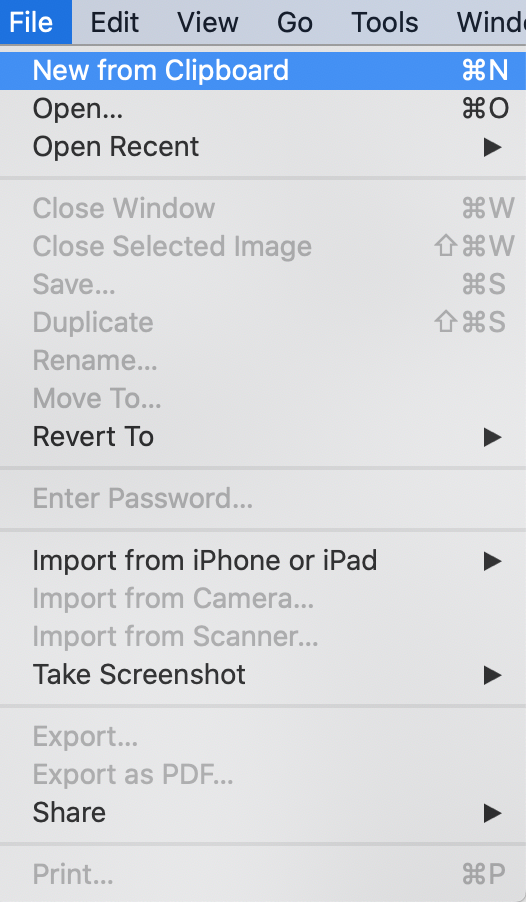
3. Access the Preview app from your Finder or Launchpad. Once launched, select File > New from Clipboard.
Screenshot via Mac
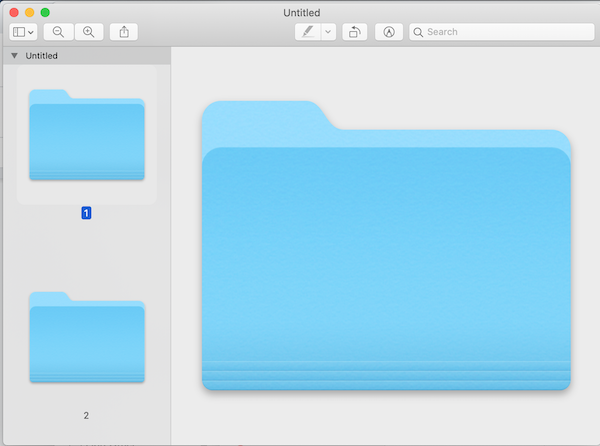
A magnified preview of the folder icon should appear.
Screenshot via Mac
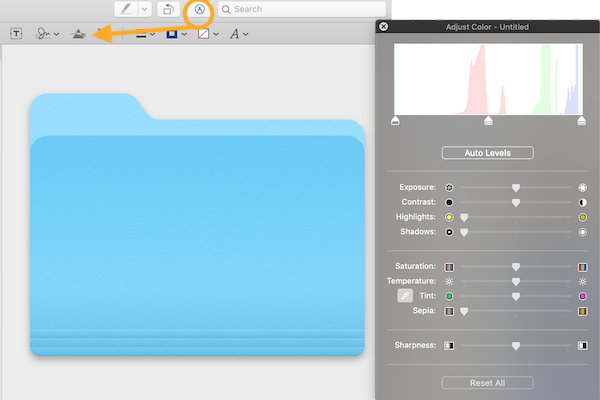
4. Select the Markup tool and then the prism icon, which is the icon for Adjust Color.
Screenshot via Mac
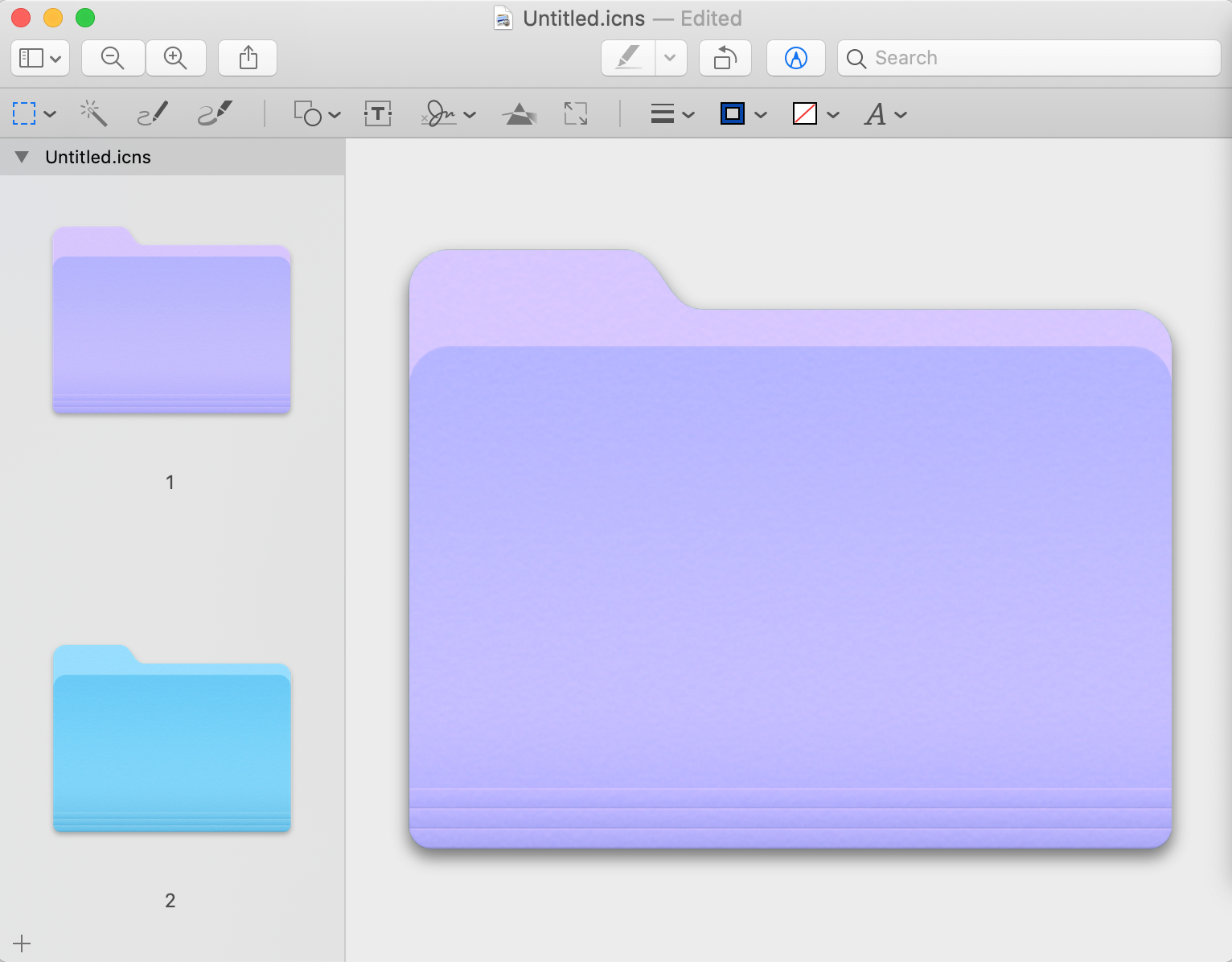
5. Now comes the fun part! You can play around with the sliders in the Adjust Color window until you find a color you’re happy with.
Screenshot via Mac
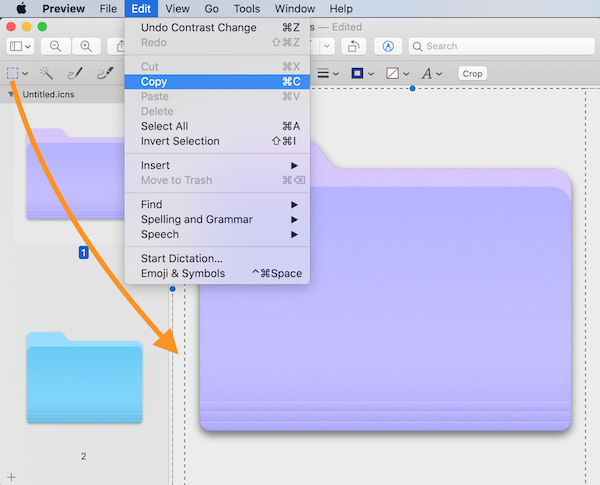
6. Once you’re satisfied with the customization, close the Adjust Color window. Then, select the colored folder, and click Edit > Copy.
Screenshot via Mac
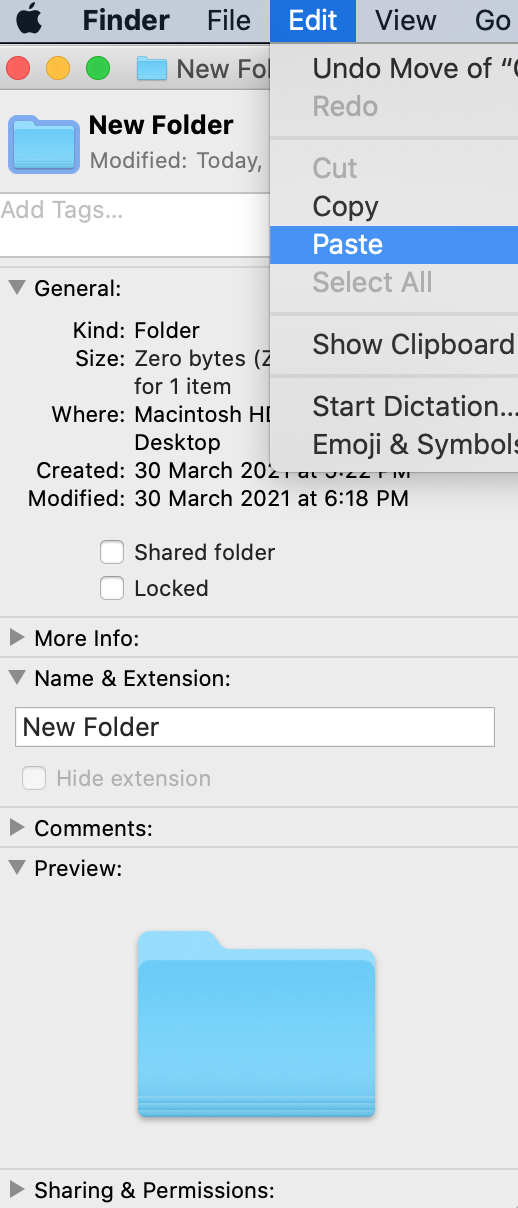
7. Head over to the Folder Info window, then click on the folder icon. Select Edit > Paste.
Screenshot via Mac
Screenshot via Mac
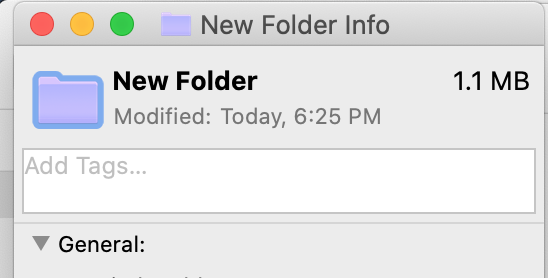
Your folder icon will be updated to the new color.
If you wish, you can apply the same technique using images instead of tweaking the folder’s color.
[via Lifewire, 9to5Mac, screenshots via Mac]
Screenshot via Mac
Do you recall labeling your notes with colorful adhesive tabs? As it turns out, there’s a lesser-known, digital version of the organization trick; you can actually change the color of your folders on the Mac so you can find them a little more easily.
Sure, you can just look at the names of your folders—but where’s the fun in that? By tweaking their hues, you’ll also instantly direct the eye to look at the folder you’re working on.
Scroll down to find out how to add a pop of color to your work process.
1. Right click on the folder you wish to customize, then select ‘Get Info’.
Screenshot via Mac
2. When the Folder Info window opens, click on the Folder icon on the left, and then select Edit > Copy from the menu bar at the top of your screen.
Screenshot via Mac
3. Access the Preview app from your Finder or Launchpad. Once launched, select File > New from Clipboard.
Screenshot via Mac
A magnified preview of the folder icon should appear.
Screenshot via Mac
4. Select the Markup tool and then the prism icon, which is the icon for Adjust Color.
Screenshot via Mac
5. Now comes the fun part! You can play around with the sliders in the Adjust Color window until you find a color you’re happy with.
Screenshot via Mac
6. Once you’re satisfied with the customization, close the Adjust Color window. Then, select the colored folder, and click Edit > Copy.
Screenshot via Mac
7. Head over to the Folder Info window, then click on the folder icon. Select Edit > Paste.
Screenshot via Mac
Screenshot via Mac
Your folder icon will be updated to the new color.
If you wish, you can apply the same technique using images instead of tweaking the folder’s color.
[via Lifewire, 9to5Mac, screenshots via Mac]
Also check out these recent news


